WhatsApp times, in your time zone
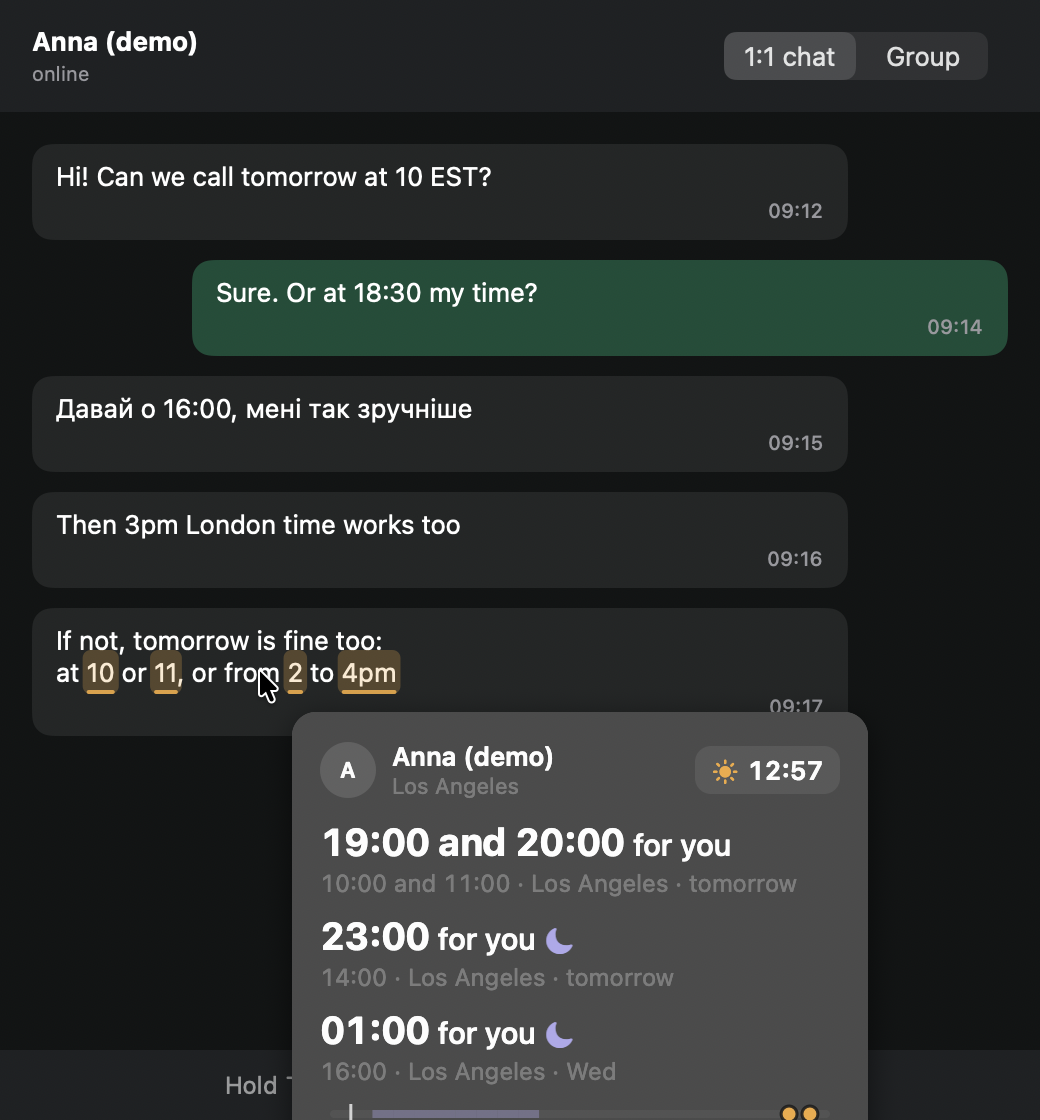
Someone writes “call at 10” in WhatsApp. Hold ⌥ Option over it, and ClockTip shows what 10 means for you.
How it works
- 1
Open a chat in the WhatsApp Mac app
ClockTip lives in the menu bar. Allow Screen Recording once, so it can read the time under the pointer.
- 2
Hold Option over a time
Keep the pointer still for a moment. The tooltip shows the time for you, next to the time where the sender is.
- 3
Confirm the zone once
The first time, ClockTip asks where the person is. One click, and it remembers.
What ClockTip reads in WhatsApp
- The chat name in the window header, to find the contact and their saved zone.
- In group chats, the author name in each bubble, so every person keeps their own zone.
- The side of the bubble, so your own messages use your zone.
- WhatsApp’s own message time at the end of a bubble is left alone. Only times in the text are converted.
- A phone number as the chat name hints at the country: +48 suggests Warsaw. You still confirm it.
WhatsApp Web in a browser works in generic mode: ClockTip converts times with a zone written next to them, or you pick the contact.
Try it in your browser
A pretend chat with Anna, who lives in New York. Hold ⌥ Option and point at a time.
Hi! Can we call tomorrow at 10?
Sure, what time works?
Or at 3pm London time, if that’s easier
I’m free today until 5:30 too
No Option key? Tap the button, then tap a time.
Your time zone, from your browser: —
Worked out on this page. Nothing is sent anywhere.
Questions
Does ClockTip read my WhatsApp chats?
Do I need to set anything up in WhatsApp?
Is it free?
What about other apps?
WhatsApp is a trademark of its owner. ClockTip is an independent app and is not affiliated with WhatsApp.